Friday, August 9, 2019

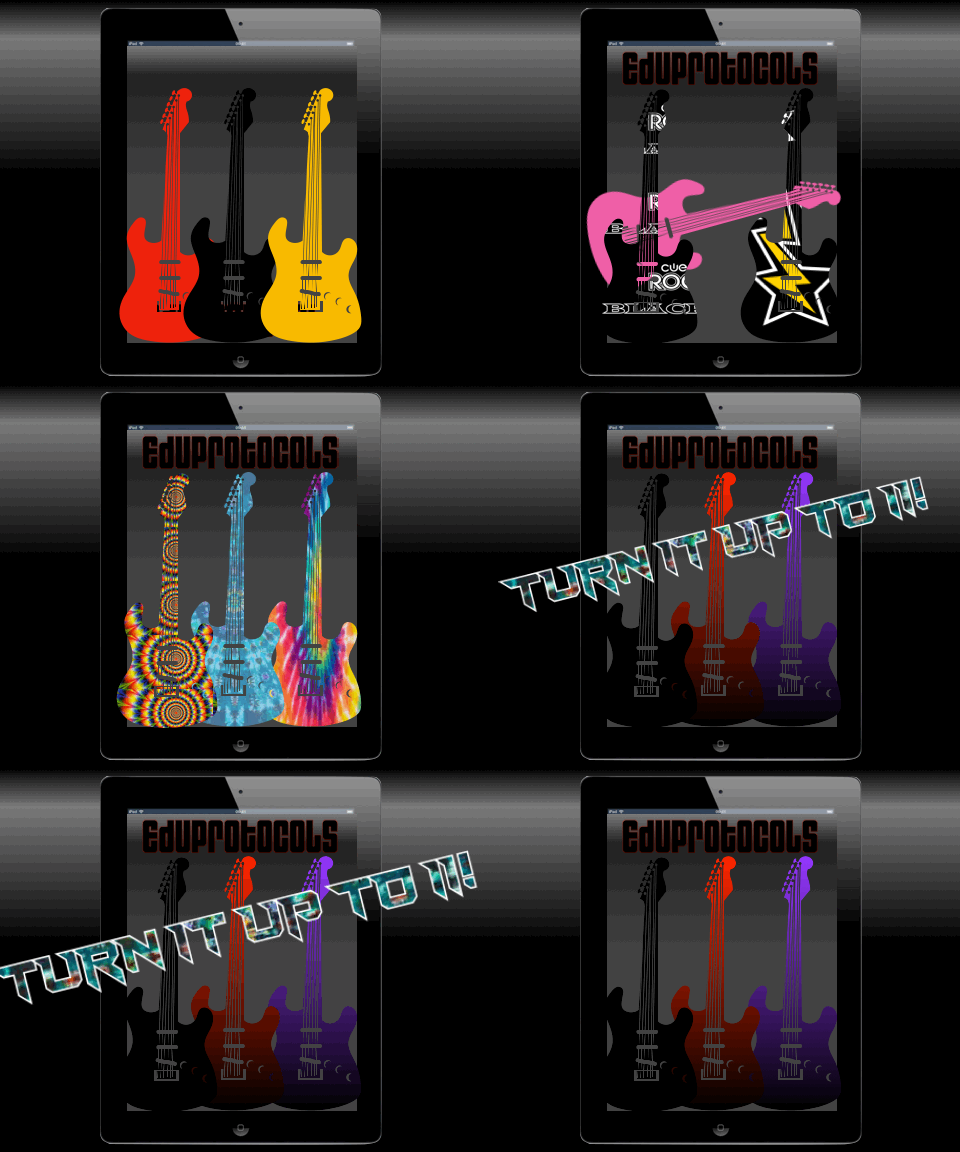
Turn It Up to 11: EduProtocols on iPads

Here are the slides for my CUE Rock Star Black Label presentation for Lake Elsinore Unified Schools.

Slide Deck

Sunday, July 14, 2019

Science on the Grand - VAEI - July 15-16


It's an honor to present three sessions this year at Van Andel Institute's "Science on the Grand" conference. Here are links to my presentation slides and session resources for the two day event.

Monday July 15, 2019


Zip Lining Into a Growth Mindset:  No elementary student is too young to develop a growth mindset and an understanding of the design process. Experience how an activity like stretching fish line across a classroom to create a Lego zip line can teach students as young as four perseverance and the steps engineers follow when creating new products.

  • Celebrate Epic Disasters


STEM Smart Start: While we often hear of the importance of positive culture in the classroom, most teachers just roll the dice and hope kids come pre-programmed to work together. Culture doesn’t “just happen” and must be intentionally cultivated. Explore ways STEM teachers create a culture of creativity, critical thinking, communication, and collaboration.
Tuesday July 16, 2019

Trashy Gliders: There is a big difference between learning about science and DOING science. In our elementary STEM program students conduct experiments by following testing protocols while discovery the elements of flight. Learn the processes we follow while building and flying gliders made from 3D printed parts.


Thursday, April 11, 2019

Create Your Own Custom Culture With My Vans Digital Design Decks

While my elementary kids are too young to enter the annual Vans Custom Culture Contest (where high schoolers can win $75K for their art programs), I have still found ways to spark creativity with their free templates available on the contest site.

While the printable templates are fun for some unplugged creativity, I have converted the lace-up model into digital form for Keynote, Google Slides, and PowerPoint. Because Keynote is just so stinking rad, there is a ton more functionality because you can fill shapes with images or mask images with precision as shoe parts. PowerPoint has its own cool abilities like filling with images and adding textures.   The slides version will let you click on a part and then customize your colors. Users on all platforms can then do further customization by applying graphics with transparent backgrounds on different parts.

The process started by uploading a digital image of a coloring template into Keynote and then I edited shapes (Right click a shape. Select "Make Editable".) to match each part. It's a pretty easy process to master with some practice. Just turn down the opacity so you can see the image you are copying.

The forefoot section, as are all parts of this shoe, is really a shape made in Keynote.

Once I was able to create each part of the shoe, then the real fun started. I was able to simply color some parts and mask other parts with images. One of my all-time favorite photographers is Clark Little, a Hawaiian surfer who braves the shorebreak of the fabled North Shore to create incredible images. Right up there with my love for Clark's work is my love for Vans themselves. So, I imagined the perfect art vs. fashion collaboration and mocked up my own dream set of Clark Little Vans. I then took one more step and put to use the new export as "animated gif" feature and created an image to show them all off.

.Gif created in Keynote with new export feature .

So what kind of cool "custom culture" will you or your students create with the templates?

Keynote Deck 
Google Slides Deck
PowerPoint Deck


Saturday, April 6, 2019

CUE Masterclass: Transform Teaching with MacOS - Enroll Today - $69

Apple's  Pages, Numbers, Keynote, and iMovie have long been considered powerful tools for the classroom but applying all of that potential can be a real challenge.

CUE's six week Masterclass "Transform Teaching with MacOS", will not only help you amplify your skills with these apps more but also develop a whole quiver of new ways to amplify your teaching.

Engage learners with multimedia rich "SuperDocs" in Pages and have them export their learning as multitouch iBooks. Discover a minimum of 20 ways to use Keynote for everything but presentations. Get organized with Numbers and overhaul student-created videos with professional techniques.

Apple Distinguished Educator Andy Losik will host three live Zoom conferences and provide on-demand assistance throughout the class and get you prepped to gain AppleTeacher certification. All of this for just $69.

Sign up today as class begins on April 16.

Thursday, March 21, 2019

It's MACUL#19 - My Sessions and Resources


The annual Michigan Association of Computer Users in Learning (MACUL - muhCULL) Conference is back and over 5000 educators will gather in Detroit to learn and share the ways they're impacting students by integrating technology.

This week has been an amazing recharge to my teaching batteries every year since 2005. Here's my schedule of presentations and links to resources.

Full Conference Planner

Thursday

10:00 am - Foster Creativity Through Visual Storytelling with Keynote - Room 258

Learn how Apple Distinguished Educators empower students to create interactive portfolios, movies, and more"with fun animations, personal illustrations, and customizable shapes"using the Keynote app on iPad. More than a presentation tool, Keynote gives students a powerful way to visually think through stories and ideas.


1:00 pm - Creativity Cage Match: Google Slides vs. Apple Keynote - Room 310A

It's the ultimate app showdown as a Google Certified Everything and an Apple Distinguished Something-or-other slug it out for 60 electrifying minutes to see whether Google Slides or Apple's Keynote will reign supreme. Will Slides' global collaboration features overcome Keynote's insanely great animations or will Keynote's Instant Alpha put Slides' transparent export in a full nelson? We'll give you the whole seat but you'll only need the edge! Session Resources

4:00 pm - Curbing a Chromebook Crisis - Room 310B

As Chromebook adoption has soared in recent year, so has data showing that millions of machines are being used primarily for low level assessments, educationally questionable games, and YouTube. Become part of the solution by increasing your knowledge Chrome-based creativity tools, by integrating time-tested educational protocols, and by exploring how you can join the #CreateWithChrome movement. Help curb this growing crisis. Session Resources

Friday

8:30 am - Apple Everyone Can Create Playground - Atrium


Come and experience the tremendously engaging...and free creativity curriculum from Apple. A whole bunch of Apple Distinguished Educators will be on hand with a bunch of Apple hardware to show you how easy it is to lead your learners in creating stunning art, images, animation, music, and video all through the free iBooks downloads. Session Resources


Tuesday, January 22, 2019

Great Slate of Featured Speakers Highlights #MACUL19

The MACUL conference is always a highlight of my teaching year. This March's edition is in Detroit and features a great slate of featured speakers, many who have shared at MACUL for numerous years.

Check out the featured speakers page at MACUL.org for more details and individual bios for the presenters pictured below.


Follow them on social media to connect in the coming weeks' run-up to the conference.

Kasey Bell - @ShakeUpLearning
Adam Bellow - @adambellow
Richard Byrne - @rmbyrne
Leslie Fisher - @lesliefisher
Abbey Futrell - @AbbeyFutrell
Ronen Habib -  @Roni_Habib
Rushton Hurley - @rushtonh
Thomas Murray - @thomascmurray
Joe Sanfelippo - @joe_sanfelippo
Dean Shareski - @shareski
Sarah Wood - @woodsar

Discovery Education to host a live virtual field trip from the Super Bowl LIII


Join the National Football League, American Heart Association, and Discovery Education for an exclusive pass to PLAY 60 Kids Day Live at the 2019 Super Bowl Experience in Atlanta. Break down the top 10 plays to PLAY 60 alongside NFL Players, mascots, cheerleaders, and American Heart Association volunteers. 

This year's live and instantly on demand event takes place on Wednesday January 30 at noon EST and is completely free to all classrooms. Simply sign up at Discovery's special registration link. In addition, educators will find all kinds of additional resources that can be downloaded to get their kids thinking about the benefits of increased physical activity and excited about this live experience.

During the Virtual Viewing Party, educators and their students can join a LIVE Twitter chat to get questions answered by @NFLPlay60, @American_Heart, @DiscoveryEd and other featured participants using #GetMovingPLAY60

Discovery's broadcasts from previous Super Bowl sites like two years ago in Houston have been big hits with teachers across the country. 

Erin Crouch from Portage Public Schools in Michigan shares, “My 2nd graders loved participating in Discovery Education’s virtual field trip for the Super Bowl! We had so much fun going behind the scenes and engaging with the  players, mascots, and even a few special guests.  We’re looking forward  to this year in Atlanta.” 

I was lucky enough in 2017 to be on set in Houston to see all of the attention to detail and the incredible energy that goes into these productions. There was great coordination with the NFL's youth outreach department, the American Heart Association, and a Discovery television production crew to pull off the live event. They even asked me to make an appearance alongside the hosts that included then-New York Giant and eventual Dancing with the Stars winner Rashad Jennings. 


Even if the noon live showtime doesn't fit well into your teaching schedule, the broadcast is instantly archived and can be shown on demand anytime after it has begun airing. Discovery Education subscribers can even access a wide range of past field trips from Polar Bears in the Arctic to the touring of a nuclear energy plant. 

Rita Mortensen from Verona Area High School in Wisconsin has used a variety of Discovery Education's virtual field trips with her students. "The Discovery virtual field trips are a great way to bring real world content into the classroom.  These engaging trips allow student to experience and go behind the scenes of so many incredible programs.  There is such a wide variety - fascinating!"

Although it is still unknown who will be participating in Super Bowl LIII, the excitement is already building. Register today to bring your students as close to the action as they can get without a ticket. 


Friday, December 21, 2018

#CreateWithChromeBooks - Remove.bg is a game changer in the graphics game

For years I have struggled with removing backgrounds in portraits. My old standbys have been the Instant Alpha tool in Apple's Keynote and the magic wand selection tool in Pixlr. Both take time with janky workflows and neither produce the perfect final product.

Along comes the new website Remove.bg that works in a web browser like Google Chrome but also on mobile devices in the browser and without a standalone app!

While arguably not 100% perfect...it's as close as I have seen and way faster than anything I have tried. As the site says it works "100% automatically - in 5 seconds - without a single click". Just select your image by uploading or by entering a URL and watch the magic happen.

Here is a picture of my wife and me on the train in Northern California and with the background removed by the site. I then used Pixlr and layered that on top of an image of Times Square at midnight on New Years Eve. Being crammed in the cold with a million people, in the immortal words of Old Blue Eyes, is our "idea of nothing to do" but nobody on Instagram needs to know all we did was eat a dozen pizza rolls and go to bed at 10:15.

Screenshot of the Remove.bg user interface
Happy New Year

The iPad user experience is almost identical. Images can be imported from your camera roll. Transparent images are then downloaded back to your camera roll and available in your favorite graphic design apps that support layers. In this example, Remove.bg deleted the very complex background of the real Times Square. 


Monday, December 17, 2018

WOODTV.com: Local STEM teacher's top Christmas toys unplug the gifts

Here's this year's edition of Mr. Losik's Christmas List.....and here is the cool feature that WOOD TV did after they visited a couple of weeks ago.

Monday, December 10, 2018

Listen: My Conversation with John Sowash on The Chromebook Classroom Podcast

John and Me...somewhere in this group photo from the rooftop of Chicago's Google offices.
Earlier this Fall I had the honor of joining Google Education expert John Sowash on his "Chromebook Classroom Podcast". We had been fortunate enough this past summer to spend some quality time together in Chicago during ISTE.

While at the edtech mega-gathering we talked a lot about my "Chromebook Crisis" post and made plans to continue the conversation on the podcast.

Here you go: "Do We Have a Chromebook Crisis?"

In the episode we address that big question but also talk about ways how teachers can foster more creativity with a bevy of tools in the Chromebook environment.


Wednesday, December 5, 2018

Mr. Losik's Christmas List: Best Holiday STEM Gifts for Kids 2018

I get asked by parents year after year what gifts I recommend that kids will love....and maybe still learn something along the way.

After much deliberation and after many discussions with my Pre-K to 4th grade students, here's the list for the 2018 Holiday Season. Sorry kids, the iPhone XS Max didn't make the list although many of you told me it was on your wishlist. Good luck with that.

This year's list contains a real balance of totally techie gifts and completely unplugged, completely old school toys still beloved by parents and grandparents. What they all have in common is that they build skills and provide experiences that every kid needs in order to live a well-rounded life both in and out of school.


Monthly STEM Crates from KiwiCo - Guaranteed to be a lot more rewarding than the Jelly of the Month Club, each month a new crate arrives in the mail with a fun activity to build and enjoy. Kiwi offers KiwiCrate for kids ages 5-8 and TinkerCrate for ages 9-15. Recent crates we've sampled included an arcade claw game from Kiwi and a fun to build arcade catapult game from Tinker. The subscription price ranges from $16.95 to $19.95 per month depending on length of commitment. Thoroughly check their site though as numerous specials are offered. A recent offer featured 3 months for $39.

MakeDo Cardboard Construction Tools - By the far the best value on this year's list is a fun tool set that will lead to endless hours of creative adventures...and you won't have to figure out what to do with all of those boxes after all of the gifts are unwrapped. It's just $12.50 for the starter set and then you can add-on more screws and tools if you need them. The cardboard box is in the Toy Hall of Fame for a reason. Kids love to create with them. This really ramps up their abilities because now they can attach individual pieces or secure a whole bunch of boxes together. You can order sets from the www.make.do website as well as get really cool project ideas.

Worx Zip Snip Cardboard Cutter - $34.00 from Walmart.com - This amazing cutter is the perfect companion to the cardboard construction tools as it is way safer than the typical steak knife that many kids end up using to cut their cardboard boxes down to the desired size. The Zip Snip is very safe. It's not 100% accident-proof but it's close as the blade opening is very small. With a little attention from the child doing the cutting and some adult supervision, it's almost magical how slickly this thing cuts. It's great for all kinds of jobs including opening up plastic packaging and for even cutting gift wrap.
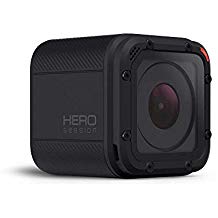
GoPro Hero Session 8.0 MP Waterproof Sports & Action Camera with Standard Housing and 2 Adhesive Mounts (Certified Refurbished)GoPro Hero Session 8.0 MP-
$114.00 Amazon.com. If your kids really want a GoPro-type camera it’s best to go with the name brand but for most families (unless your kids are really into filmmaking) the entry level model will be plenty of camera. There are some key points to consider however. There is no viewfinder. You use an app on a phone or tablet to set up a shot or to review clips. The free GoPro apps are really great for framing of shots, reviewing shots, and for doing some quick editing of short clips. The footage files though are really big and will fill up phone and tablet space quickly so you will want a computer to edit longer footage.

Also, tons of fun accessories like bicycle and helmet mounts can be found quite cheaply at Amazon as well. In STEM we've found these to be just as reliable as the GoPro branded ones.


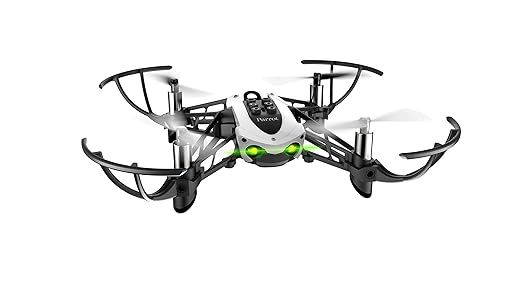
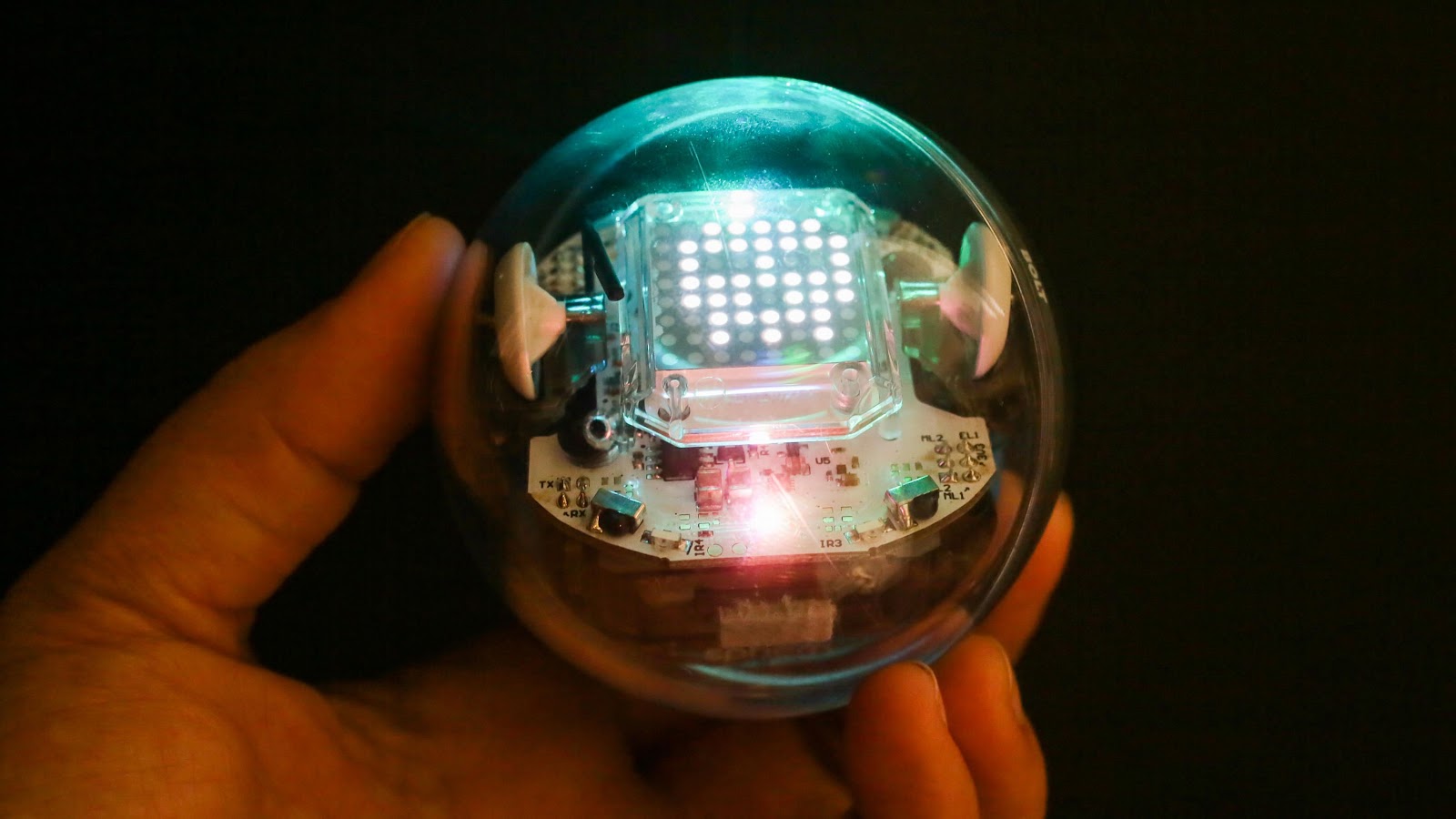
Parrot Mambo Drone - $66 - Amazon - I am also being asked an increasing number of questions about which drone I recommend for kids. Personally, if I was going to buy drones for us to use in STEM, my choice would be the Mambo from Parrot. There are a couple of reasons. For the price, the quality, reliability, and out of the box ease of use set this model apart in an increasingly crowded market. Secondly, the coolest thing I find with this one is that there are tons of coding activities kids can complete to control the vehicle. Talk about taking command through learning. Coding is more than just creating games. It's all about doing high-end math and solving problems. We know that the more puzzles kids do, the better they do in math. Coding to make these things fly is a type of puzzle guaranteed to grow a few brain cells.Parrot Mambo Fly - Code, Pilot and Play Sphero- The Bolt ($149) with its LED display panel is on a bunch of wish lists this year but the Spark+ ($99) and Sphero Mini ($49) are also more affordable options. The thing about Sphero that I love is that it ties coding to something tangible. When a kid can see a physical object react to their programming it makes coding far more meaningful than just moving objects on a screen. Note about the Mini: They are much more fragile than the others. Keep them on the floor. We’ve had some casualties from them falling off of the tables in STEM. All are available from Amazon.

Lincoln Logs - $26 to $85 from Amazon. Kids love these very old school analog building toys. They provide hours of unplugged creativity and parents and grandparents love the nostalgic connection they feel when they all build together. Construction toys are so important for boys and girls to play with because we learn common sense and laws of physics. There are lots of stories from female engineers who discovered when they got to college they were at a disadvantage because their male counterparts had so much more experience putting things together. Whether our kids are headed to become engineers or not, the hands-on experience of working with these gems is something everyone should experience.

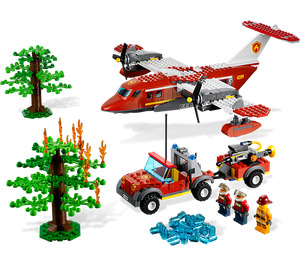
Legos are also a timeless favorite but can be really expensive. Just as apps like Mercari and Poshmark have made dealing in new, used, and vintage items easy options, BrickOwl.com and Bricklink.com are cool third party Lego marketplaces. The Lego Fire Plane 4209 set retails for $68.99 across the web but can be had on BrickOwl for as low as $37.50. We all know that the sets are great but if you can get lots of random blocks for original creations, they'll grow even more creatively. There are new and used bricks so do some research before buying.LEGO Fire Plane Set 4209

More Old School - Every year it seems like our kindergarteners come to us with less and experience with being creative with stuff like construction paper, scissors, and other craft supplies. This is evident in reduced fine motor skills, lower social skills when it comes to creating together, and a need for teachers to prompt more children who simply state they don't know what to make. It's easy for us to blame this on too much screen time but lives of little kids can be bubble wrapped and ultra-organized. Many kids get less and less unstructured "just build it time".

Go out this Christmas and buy lots of things you used to use to just make things. Who's daring enough to buy their kids glitter? Are you ready for a trip to the real danger zone? Get them a hot glue gun to really ramp up the crafting and construction game. How about a real workbench with a hammer and saw like this one from Stanley?

We as educators and parents know that technology is great for helping kids learn and yes, enjoy life. Let's occasionally take a step back and look at what type of balance our children's lives are seeing. They need to explore, document adventures, learn new things, and they need to create with other kids and family members. By putting any of these suggestions under the tree, you'll be helping your kids make that happen.

Tuesday, October 2, 2018

Everyone can teach great media production with "Everyone Can Create" curriculum guides from Apple

During last Spring's launch of the newest iPad Apple debuted its new curriculum effort, "Everyone Can Create". iLife has always led the way when it comes to great tools that allow students to create at a high level. Now teachers and students can download a series of guides that turn "good" student projects into "great" student projects. 

The guides dig deep into the iPad's capabilities and provide easy to follow tutorials that will have students seeing immediate improvements in how they use the devices. 

Activities like taking photo walks, sketching original emojis, making documentaries, and even learning to mix music will help you and your students produce like professionals in Keynote, Clips, iMovie, Photos, and a few third party applications like Tayasui Sketches. 

Check 'em out. The links below open in iTunes. You can also download all of the guides directly in the iBooks app.


Thursday, July 26, 2018

Loving Shark Week? Here are Great Classroom Resources

One of the coolest things I have enjoyed from this year's Shark Week is discovering the great educational resources hosted by Dr. Neil Hammerschlag and the University of Miami Shark Research Lab.

Check out the "Virtual Expedition" where learners can experience a shark tagging research trip from prepping the gear to identifying sharks they've tagged.


Other resources your students will find fascinating are:


Wednesday, June 6, 2018

Worst Preso Ever: Jon Corippo explains how to integrate this gem into any curriculum

Here is a gem from Jon Corippo that I have used over and over with kids of all ages as well as with professionals in workshops.

It's the "Worst Preso Ever" activity and it is part of the Smart Start program Jon developed for establishing culture and foundational skills when he led the opening of Minarets High School in Central California.

In the video Jon gives the rationale and the steps to how making awful presentations can lead to really great ones and a community of learners and creators.


Tuesday, May 29, 2018

Beyond Presentations: Customize Google Slides to any Dimension

One simple tweak under hood can unleash a world of freedom!

Now, that sounds like something a gear-head teenager might say after barreling out the carburetor on his mom's Passat. What we're talking about here though is Google Slides. With one not-so-obvious click, any Google slide can take on any dimension.

Make it tall and rectangular and create infographics. Make it long and rectangular and trick out your Twitter banner (1500x500 pixels) or your Facebook cover photo (851x315 pixels for desktop, 640x360 pixels for mobile) or go square for Instagram like I did. You can choose dimensions in inches, centimeters, points, or pixels.

To customize the slide, go to FILE and then PAGE SETUP.
 The thing I find most useful here is the fact that Slides connects so nicely with Google Photos. If I am posting to Instagram and want to create a collage of pictures from a trip or if I want to add words of wisdom to an image then Slides is one stop shopping. You can download your image as a JPEG in the FILE menu. It's too bad we can only post to Instagram from a mobile device.

Customizing slide size is just another way a lot of creativity can be fostered through Google Slides...and has nothing to do with just making slideshows.

For more creativity tools, especially for Chromebooks, check out the Chromebook Creativity Project and follow #CreateWithChromebooks on social media.

Wednesday, May 2, 2018

Turn Keynote into a 3D Design Studio

With the advent of a growing shape library in Keynote and virtually unlimited fonts (if you use the Mac version), the presentation application can be leveraged into a dynamite design tool...even for 3D printing.

For years I have been using Keynote for just about everything except slide shows. I create fun graphics for video production, t-shirt designs, as it is where I stop long before I fire up Photoshop. Now with a growing assortment of silhouette shapes and symbols, the creativity possibilities have increased exponentially.

Here is a quick workflow for turning Keynote creations on a screen into 3D printed reality.

1. Design in Keynote. Just make everything black so it will convert easily. Here I have designed a shark that will stand up on a small pedestal (to be added later in Tinkercad) with the words "Great White Shark" added to the base. Notice how I added some grass and star fish to liven up the design a bit. I did this one quickly on my iPad so fonts were limited but had I used the Mac version, I could have gotten a lot more in depth with my text designs. Note: Everything you create in Keynote will essentially be one object in the CAD program so it will all print at the same thickness. If you want objects to have differing thickness, just create separate slides for each individual part.


2. Export your slide as an image and then convert to a scalable vector graphic (.svg file). The easiest way I have found to do this to use is SVGcreator.com. It's a simple upload, automatic conversion, and download process.


3. Open your 3D design app or site of choice (I work mainly in Tinkercad.com) and import the .svg file or files you created from the converted slides.

Add any extra pieces you want and then assemble the pieces. I added a wedge piece for the base and then under my text, I slid a small rectangle that will help keep my text together. Eventually I will glue that printed text onto the front of the base.


4. Scale, adjust, and download for printing. Really, that is all there is to harnessing the tremendously creative power of Keynote into something you can actually pick up and handle.

Here is the final product as produced with our XYZPrinting DaVinci Mini Maker. Like most designs, this one too could use some refining. The text ended up being too small to be useful and a little poster putty went a long way to help our shark stay afloat. Still, this is a fun example of what Keynote, creativity and some free conversion tools can help you and your learners create. Think about all of the knowledge they


Monday, April 9, 2018

Check out "Check This Out with Ryan and Brian" podcast

I've followed the great ideas of Ryan O'Donnell and Brian Briggs for a long time on Twitter. On Sunday I discovered their podcast "Check This Out".

What got my attention was when Brian tagged me in a tweet announcing their latest episode. In episode 81, the two California educators spend some time talking about my "Chromebook Crisis" post earlier this winter. Not only are they keeping the conversation going about the need for more more creative uses of Chromebooks, they drew a nice connection to another project already underway.

Ryan has been presenting on and posting with the #CreateWithChromeBooks hashtag since the Fall of 2016 when he launched his own initiative to promote more creativity in learning with Chromebooks.  His efforts are right in-line with what I am trying to do with the Chromebook Creativity Project on this site. One of my favorite ideas these guys mention is who cool a CUE Rock Star  camp would be if it could be entirely Chromebook creativity themed.

Other cool parts of this episode include throwbacks to an app that emulates 8 bit Where in the World is Carmen San Diego? and the new handheld Oregon Trail game device. They throw in some rants too about a few things in edtech that could use an improvement or just hit the bricks. You also have to tip your hat to a couple of podcasters who share their favorite podcasts. Check out their show notes for links and give the episode a listen.

I am off to listen to more episodes....and get rid of the cutesy tile font I changed my Twitter name to. I agree guys, they're pretty lame.

Tuesday, March 27, 2018

Apple's New Homework Ad is Everything it Should Be

As part of Apple's launch of its new educationally focused iPad, the company debuted a new ad showcasing the way the device can be used to creatively transform homework.

Using a recitation of Jack Prelutsky's poem "Homework" as its background,  we follow home a group of kids from a boring old science class and watch how much fun they have completing their group project on gravity with their iPads.

Apple's tag line for the new iPad that retails at $299 for schools and $329 for the public is "The perfect computer for learning looks nothing like a computer."

What I find most intriguing is that Apple has tapped into the reality that in too many cases kids have far more fun learning at home on their own than they do in their classrooms.

In our STEM classes we are doing our best to make what you see the kids doing at home in this video, what our kids do at school.


Friday, March 16, 2018

Unplug and Let 'Em Cut!

Our kids don't get enough practice cutting and pasting. No, not the cheating on a term paper kind of cutting and pasting....real cutting and pasting. Today in Young Fives STEM we just unplugged from iPads and starting cutting the nature magazines provided by a local conservation club...and it was awesome. Beautiful snake collages now decorate numerous refrigerators around Hamilton, Michigan.


Wednesday, March 14, 2018

Help Kids Develop and Conduct Scientific Tests with an EduProtocol

Yesterday I wrote about how I have designed an "EduProtocol" to guide students through the design process. For those of you not familiar with an educational protocol, here is a quick description from Jon Corippo and Marlena Hebern's new book The EduProtocol Field Guide: 16 Student-Centered Lesson Frames for Infinite Learning Possibilities.

"EduProtocols are customizable, frames that use your content to create lessons to help students master academic content, think critically, and communicate effectively while creating and working collaboratively,"  


Kids are good at trying stuff out but not
 at developing scientific testing procedures.
A key factor in the design process is the testing of prototypes. Although I have found that my K-4 STEM students "get" the overall idea constantly designing, testing, and tweaking, they struggle with creating scientifically sound tests to know how well their prototypes work.   

Our elementary STEM program uses the Next Generation Engineering standards, specifically.

Students who demonstrate understanding can:
•3-5-ETS1-1. Define a simple design problem reflecting a need or a want that includes specified criteria for success and constraints on materials, time, or cost.
•3-5-ETS1-2. Generate and compare multiple possible solutions to a problem based on how well each is likely to meet the criteria and constraints of the problem.
•3-5-ETS1-3. Plan and carry out fair tests in which variables are controlled and failure points are considered to identify aspects of a model or prototype that can be improved.

One of my independent professional growths goals this year has been to improve students' abilities to nail that third goal. I mentioned earlier that I find kids struggle to focus on the finer points of testing beyond "just trying something out." From an instructional side, I too have struggled with how to effectively teach this. It just seemed inherent to me that kids would understand controlled conditions and how one variable effects the others....umm...no...they don't.

Protocols to the rescue. For the last month I have been working to develop a protocol which effectively helps the learner see all of the variables in play, specifically independent, dependent, and controlled variables.

I finally have a functioning protocol developed that I am finding guides kids through the steps as well as provides some onboard vocabulary support that helps them keep the terminology under control. It is also deepening their understanding of the cause and effect relationships between all of the variables. 

I have also included a second page that helps students record data, make sense of their test results, and reflect on their testing design. 

Google Docs version is available here for you to view, download, or make a copy and tweak as you would like. Share all you would like but please don't sell it. I hope it can help your kids as much as it is helping mine. 


Creative Commons License
Design Process Student Protocol by Andy Losik is licensed under a Creative Commons Attribution-NonCommercial 4.0 International License.
Based on a work at mrlosik.com.

Tuesday, March 13, 2018

Simplify Teaching the Design Process with an "EduProtocol"

We can put up posters and charts and show YouTube videos of the design process, but I have had the most success at guiding third and fourth graders through it with this original "EduProtocol".

"EduProtocols are customizable, frames that use your content to create lessons to help students master academic content, think critically, and communicate effectively while creating and working collaboratively," state Jon Corippo and Marlena Hebern in their new book The EduProtocol Field Guide: 16 Student-Centered Lesson Frames for Infinite Learning Possibilities.

Whether you are teaching kids how to form complex sentences or how to properly compare and contrast, protocols work. Having been inspired by Jon and Marlena's work, I have developed this road map for students to navigate the design process steps in terms that make sense to them and requires them to think critically along the way.

Our elementary STEM program focuses on the Next Generation Engineering standards and this protocol drives student attention to the these three standards.

Students who demonstrate understanding can:
•3-5-ETS1-1. Define a simple design problem reflecting a need or a want that includes specified criteria for success and constraints on materials, time, or cost.
•3-5-ETS1-2. Generate and compare multiple possible solutions to a problem based on how well each is likely to meet the criteria and constraints of the problem.
•3-5-ETS1-3. Plan and carry out fair tests in which variables are controlled and failure points are considered to identify aspects of a model or prototype that can be improved.

Students must start with a driving question, consider available materials as well as constraints and limitations. From there a prototype is sketched and a test is planned. Once the actual object is built it is tested and results are analyzed with students looking for points of failure. The process repeats itself as students get to work on correcting the points of failure, redesigning their prototypes and testing all over again.

So far with my third and fourth graders, I am seeing a whole new level of focus. In the past, despite all of my best efforts to make it serious and scientific,  a project like building gliders from straws and grocery bags felt more like crafting than engineering. That has definitely changed with the protocol as time must be deliberately spent on reflection and analysis. With the gliders, utilizing the elements of flight became more important than how rad your glider looked.

Additional attention beyond the protocol is given to learning about variables and testing, as well as evaluating multiple design options. Protocols are in the works for those as well as I am struggling to really develop understanding of those aspects in my students. (Update: just launched a protocol for understanding and using variables)

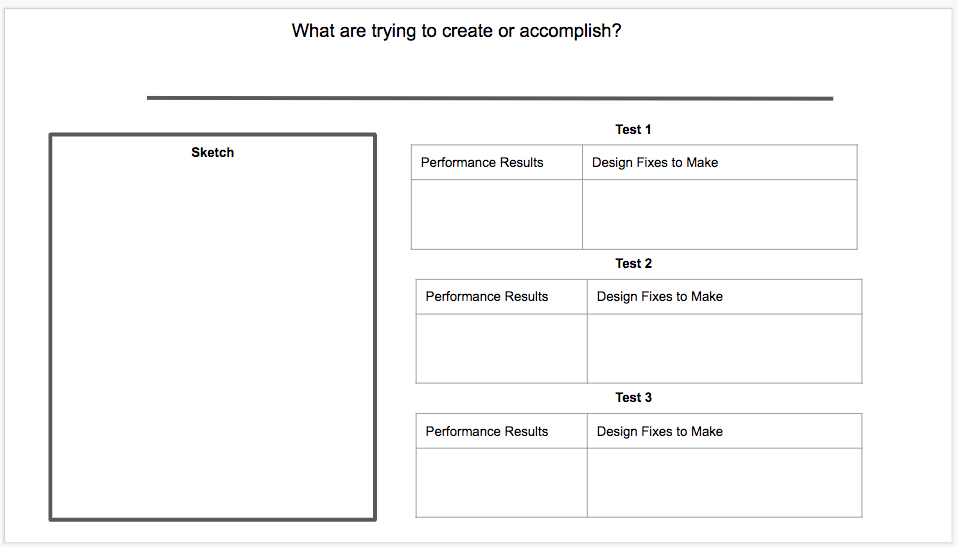
Here is the design protocol. The first page is the starter and then multiple copies of the second page are used for each additional generation of the design. This allows our young engineers to track their adjustments over time, but also forces them to really consider why adjustments are being made and how they will know those changes made a difference.

A Google Slides version is available here for you to view, download as PDF, or make a copy and tweak as you would like. If you share it, great! A mention is appreciated but please don't sell it.


Creative Commons License
Design Process Student Protocol by Andy Losik is licensed under a Creative Commons Attribution-NonCommercial 4.0 International License.
Based on a work at mrlosik.com.