Showing posts with label video. Show all posts

Monday, August 17, 2020

Teach your kids to "Shoot Like a Pro" - Photo Shooting Gallery

 When we literally leave our students to their own devices, they create infinite sums of really terrible photos. It doesn't matter if they are killing time with the camera or actually trying to take purposeful shots for academic projects, the stuff they capture can be pretty terrible.

It doesn't have to be that way. Here is a simple activity that is guaranteed to help kids ramp up their production value when it comes to taking pictures. The Photo Shooting Gallery is based on a favorite activity of mine that teaches students cinematic angles when creating videos. The same principles apply here as this activity is all about framing shots and understanding the visual grammar each one conveys. 

The Shooting Gallery is great for students new to devices, like schools initiating 1:1 programs. It is also a way for remote teachers to get students utilizing their home environments as they capture their worlds around them. Click here to make your own copy of the deck below


Saturday, March 7, 2020

If you like Remove.bg then you're going to love Unscreen.com

When Remove.bg hopped on the scene, arduous hours in Photoshop to remove backgrounds from photos disappeared in an upload and a quick. Now, the same folks are back with Unscreen.com, a tool to instantly remove backgrounds from video clips and then easily layer in a new background. Final products download as .Gif files.

Simply upload a clip and then pick either a stock background or upload your own. Here the site is preparing a clip of me irresponsibly lighting 30-year-old Mexican firecrackers I had bought in junior high from a lady who sold these homemade dandies on the beach in Puerto PeƱasco. They were in a bunch of junk my mom had recently cleaned out of my old bedroom...but I digress.


After the upload was complete, I picked one of the stock backgrounds to gauge how the clip looked.

I could have stopped right there as the project was pretty cool, but I thought, "Why not make this video doubly ridiculous?". For my background, I upload a dumb clip of me dunking a basketball on an eight-foot and somewhat leaning basketball hoop. I think it turned out pretty cool.

Now I am thinking, "How many other videos of me doing silly things could I layer into this?". There have to be five or six floating around my Google Photos.

I am sure there are a ton of curricular applications for Unscreen, but I always have the most fun learning a new tool by creating something of absolute little use to the educational advancement of anyone...like this.

Thanks, as always, to the incredible Brian Briggs who shared Unscreen with me this week by mashing up other videos that were "of absolute little use to the educational advancement of anyone."

Tuesday, March 3, 2020

Find Amazing Royalty-Free Video Clips at Coverr.co

If you are not listening to the Shukes and Giff Podcast, you are missing out on really corny jokes, witty banter, and incredible resources to use in the classroom immediately. In their most recent episode, Canadian educators Kim Pollishuke and Jen Giffen shared that a treasure trove of royalty-free stock video footage can be found at Coverr.co. Both Unsplash and Pixabay are great for still stock photos, but this now adds a great repository of video for creative student projects.


All clips are completely free and all that is required to download one is a one-time email subscription to the site's updates. There's no verification required so enter your mother-in-law's Hotmail account. Seriously though, this is a great site providing great footage, so give them the courtesy of a follow.

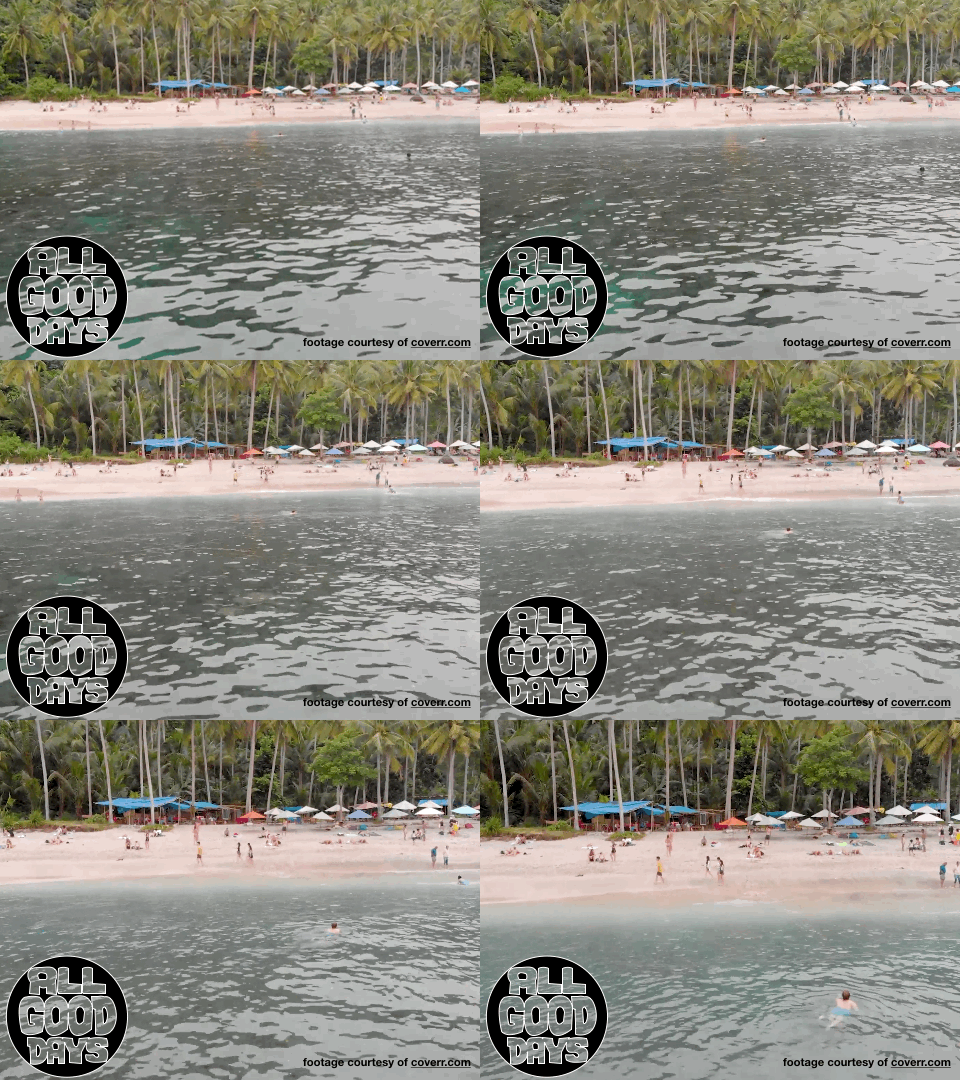
One search for "Beach" turned up 127 videos. What a great way to assemble a relaxation video montage to chase away the winter blues.


When you download, you receive a .ZIP file that contains the clip in .MP4 format and a still .jpg. I ran my beach clip through Keynote and turned it into a "Spring Break is Coming" .gif.


Coverr.co opens a world of possibilities when it comes to student video production. My mind immediately goes to digital story-telling, where students could use these video clips as the story's setting. Conversely, teachers can stimulate analog story-telling by using a clip as a writing prompt. 


Saturday, March 5, 2016

Wednesday, July 8, 2015

#cuerockstar Shoot Like a Pro

Shoot like a pro!


Here are 19 different camera techniques for producing professional quality video productions with whatever device you have. Learning these or teaching them to students will greatly improve the quality of video that is produced. Once you see them, you can't help but use them.

Watch this presentation to see examples of each. You will be asked to take each of these shots on your own and put them together in your own "Shooting Gallery".

REMEMBER THESE ARE 5-10 SECOND VIDEO SHOTS, NOT PHOTOS.

Download the shot sheet here.


Minarets Shooting Gallery Level One from Minarets High SchoolBelow is one of the finished products 5th Graders at Bentheim Elementary completed. Watch it to see the shots in action but make yours original.
Anti-Gravity Shooting Gallery from Andy Losik on Vimeo.More creativity resources for your projects.

Scary Mary and Shining, A Romantic Comedy show the power of Music.


What will you create?


Thursday, January 15, 2015

iPad Apps for Film-making | A Listly List

Here is a great post I came across today highlighting 9 apps for film-making. These are great app smashers where each one performs a certain task and those products can all be mashed into one project.


iPad Apps for Film-making

Listly by Cathy Hunt

These apps provide us with endless possibilities for innovative teaching and creativity in the classroom. Introducing apps and workflows should be a derivative of considered instructional design and pedagogies that stems from a focus on the learning.

See Cathy's full post: iPad Apps for Film-making | A Listly List.

Tuesday, December 2, 2014

11 Months, 3000 pictures and a lot of coffee. - YouTube

This is an amazing video created in stop motion. Read the creator's explanation of how it all began.
 

Started out as just a collection of snaps as I stripped down an engine bought off ebay. (To replace my old engine, which had suffered catastrophic failure). The snaps were so that I remembered how everything went, so I could put it back together again.

via 11 Months, 3000 pictures and a lot of coffee. - YouTube.

Monday, November 24, 2014

5 Easy Tech Projects for Kids to Give Thanks

Here are five technology infused ways for kids to show their thankfulness as we head into Thanksgiving here in the U.S. Canadian friends can file this one away until next Fall.

The great thing about each of these activities is that thoughts and ideas are not only shared with the whole class but also an authentic audience across the web. Publish a link in a newsletter or on a class blog and invite the outside world into your classroom and the hard work of your students.

1. Blog Comments: One of the fastest ways for kids to give thanks is on a class blog. Create a post as a writing prompt and then open up the comments to your students. In Blogger and other platforms there are various settings to allow anonymous comments but have students sign each one with a first name. It is a good idea to watch each new addition closely to ward off any pre-holiday hi-jinx or silliness. It is neat to see all of the ideas in one group spot. Students can also comment on each other's thoughts.


2. Build a Shared Class Slide Deck: If your students all have Google Apps for Education accounts, you can create a presentation that has a blank slide for every student. Just share the deck with the entire class and each student can work in his or her own little corner of the collaborative project. It is a proactive idea to designate each slide ahead of time with a student name or class number. This greatly reduces students interfering with one another. Each can create a slide that has textual and visual expressions of what makes them thankful. The finished deck can be embedded on a class webpage for everyone to easily view.

[caption id="attachment_881" align="alignleft" width="251"]IMG_0001 Haiku Deck helps you makes stunning slides.[/caption]

3. Get Artsy with Haiku Deck: Students will need an account in Haiku Deck, but they can do that with their Google Accounts as well. Haiku Deck is available free as an iOS app or on the web at HaikuDeck.com. There isn't the option of all collaborating on the same deck of slides like in Google Apps, but there are a number of sharing options that easily let students email links or embed codes to a teacher so all of the work can get compiled in one publicly accessible spot. Students can upload their own background photos or select from the beautiful free collection that Haiku Deck offers.

4. Create a Pic Collage: This a great free app available on iPad and Android devices. It has an easy to use interface for dragging and dropping a number of pictures into a collage and accenting with text and borders. A number of frames are available that makes the maneuvering even easier. Non-linguistic representations of concepts are often the most powerful connections to really understanding something. A collage showing thankfulness really gets kids thinking about what they have special in their lives, but also how to effectively communicate that visually. Collages can be saved as images and then posted by the teacher.

5. Let Them Show it with ShowMe: ShowMe is a great whiteboard recording app for the iPad. Students can upload a picture or draw one and then create a voice over track telling for what they are thankful. One advantage that ShowMe has over some of the other whiteboard apps is that if logged into a teacher account, the quick movies generated can all be easily posted to webspace that ShowMe provides.

None of these techniques take a tremendous amount of tech skills and don't require a lot of planning on the teacher's part. Give one a spin this week and you are likely to wind up thankful you did.

Friday, November 7, 2014

Explain Everything + Google Drive = Awesome

I saw today via the Twitterverse that the whiteboard app Explain Everything  (iOS|Android) connects with Google Drive. I have primarily been a user of ShowMe when it comes to whiteboard apps but this might be the tipping point for me to move over to the EE side of the fence. Add in the fact that Explain Everything is also the only whiteboard app currently available on Android and it becomes even more attractive since I use devices on that platform as well.

When starting a new project, Explain Everything allows users to access photos from the device's internal media storage but also makes materials and docs in iTunes, Dropbox, Box.com, Evernote, and OneDrive available in addition to what you have in your connected Google Drive account. With some of the other whiteboard apps, I would get frustrated because something I wanted to annotate in a video wasn't in the camera roll on that one particular device.

Those multiple cloud-based options are also available when it comes to saving your project video with the additional benefit of exporting to Vimeo. On the iPad, there is even the option to open the project in other apps like iBooks as a .pdf or iMovie as a .mp4.

Here is a video I created from family pictures housed in Drive and then saved back to Drive. 

Here is a scenario where Explain Everything connected to Google Drive could be very handy for a teacher. A fourth grade teacher is trying to figure out why many of her students are struggling with long division so she has them each complete one long division problem on the tablet in the hallway while narrating their problem solving with Explain Everything. By having students save their videos to her Google Drive or a classroom Drive account, she can later watch those videos on her computer. She can analyze exactly where hangups are happening for each student and organize all of those pieces of formative assessment into one folder. She could conference the next day with each student as they watch the video together and address the specifics of the problem. She can also share that video with a child's family very easily to help explain where the student needs work.

One drawback of Explain Everything is that the app does not provide users an online space to post their videos like ShowMe does. With all of these other options, that is quickly becoming a moot point.

The app costs $2.99 but is easily worth every cent.


Thursday, September 25, 2014

Detroit Pistons finally do something right - teaching kids literacy concepts

As a long-time Detroit Pistons fan I have shaken my head at many of their recent management decisions and recent woeful seasons on the court.

The franchise got something exceptionally right recently though. Broadcaster Greg Kelser hosts a couple of videos aimed at improving literacy, specifically students' abilities to stake and back up claims and understanding that every writer brings a different point of view.

The videos were produced as part of the team's outreach into public education for schools in Oakland County, Michigan - the area surrounding the Piston's Auburn Hills arena and headquarters.


Friday, September 12, 2014

Taking the Shooting Gallery to the Wild Side - Jon Corippo's new book

[caption id="attachment_704" align="alignleft" width="225"]Studying environmental impacts and learning to think cinematically Studying environmental impacts and learning to think cinematically[/caption]

Yesterday presented a chance to work with innovative teachers and embed some technology instruction into middle school math and science investigations. Despite the 49 degree temps and constant mist, it proved to be a tremendously rewarding afternoon.

A lesson I have used for three years now is called the Shooting Gallery. It was developed by Jon Corippo as a way to lay film making foundations for students in the classroom. It is one thing to provide the opportunity for students to share learning in video form, but it is a whole other ballgame when you can give them techniques that greatly ramp up the quality of video they are producing.  That is how I use this lesson and it's why I approached a couple of our middle school teachers who are leading an integrated math and science class that studies our local watershed.

Students in the STREAM class at Hamilton Middle School by Ted Malefyt and Nate Alkire study and then share their learning in a number of ways beyond pencil and paper. Coming up they will be presenting projects to a panel similar to the ABC show Shark Tank. We want to give these kids all of the digital tools we can so that their work impresses somebody besides their grandma.

Here is a slide deck Jon and his students built.


Download the shot sheet here so your students can track their progress as they practice these cinematic angles.


In addition to these resources you can now download Jon's free iBook that is an expansion of this lesson. It can serve as a great digital text for giving your students more tricks and tools for making great videos.


Tuesday, May 27, 2014

Demystifying the new iMovie

Jon Corippo and I presented on Advanced iMovie techniques at the 2013 MACUL conference in Detroit. Since then, iMovie has undergone some significant changes.

A number of the old habit workflows no longer work. This was the scene at the Connected Educator Un/conference about a month ago. Several of us were completely stumped at using green screen in the newest version.


Jon recently overhauled the Advanced iMovie Techniques slide deck for the new version, demystifying all of the changes. Enjoy.
 

Wednesday, April 16, 2014

Make the amazing by combining Discovery Education and iMovie.


Here is a step-by-step screencast for using the great footage available from Discovery Education Streaming in conjunction with the superpowers the iMovie trailer feature delivers.

In the video I demonstrate making trailers on a Mac. The same can done with an iOS device as well. The process is similar but varies slightly. One of my edtech pioneer heroes Kathy Schrock offers up this super guide.

Check out additional hints and ideas on this process as I host Discovery's "DENvice" this week on Facebook.

Thursday, April 3, 2014

Thank You Michael - a Video Response

Way back in January, my fellow nerdy friend Rushton Hurley shared with me a fabulous video posted on his NextVista.org site called "My Name is Michael" and I subsequently shared it here on this blog.

The video is by a California middle schooler who has Autism and with the help of his teacher, Michael shares his daily struggles and desire to be included by his peers. It is powerfully honest and as I began to show it my upper elementary students I could tell they really "got" his message. The response on this site was great too and Michael's mom actually took time to leave a little thank you in the comments.

To harness some of the energy generated from our discussions in the classroom, the kids and I began to brainstorm what we might be able to do in order to let Michael know we appreciate the courage it took to make his video and that we all deepened our awareness of Autism from his work. What follows is a student-created video response.

This one is for you Michael!

Thank You Michael from Andy Losik on Vimeo.


Tuesday, April 1, 2014

Join the #MichEd movement. Share great teaching in Michigan.

Great things are happening in the classrooms across Michigan and many educators are realizing they have the tools to tell their own stories. We are no longer at the mercy of how politicians or portray us or what stories the media chooses to tell.

The #MichEd Video Challenge is aimed at collecting all of the awesomeness in one spot. Please consider sharing the great things you are doing with your students. We must tell our own stories. We are the only ones who really know how they go.

Friday, March 28, 2014

Update: #FlippedClassroom Flop

Mako by Emma from Andy Losik on Vimeo.


So it has been three weeks since my attempt to get second graders making movies crashed and burned right before my principal's eyes for my formal observation.

I can't tell you how much support my sharing that experience generated from readers of my blog and friends on social media. I stated then that it was actually an experience I needed because I was bound to grow from it and see this project through to completion.

Now three weeks later I am proud to share that over half of the second graders have successfully completed their projects. Check out Emma's above.

Along the way the kids began to express their frustration over the amount of background noise that kept interfering with their voiceover work. Others simply struggled with using that specific feature in iMovie. To assist in this step, I slowed down the process and worked one-on-one with them on this part. One kid would record at a time with me away from where the rest were working quietly. To provide help to those still just trying to reach this step, I set up a Genius Bar just like at the Apple store. Kids who had mastered the process set up shop to help other students. Those completely done or waiting to record voice could select from a handful of problem solving games like Tinkerball and Tumble Town.

Projects are getting done with quality. Kids are getting one-on-one time with me. Kids are helping kids while others build additional skills...and I got better as a teacher. It just took a few lumps getting to this point. As far as the observation goes, my principal came back yesterday and liked the progress. He even spent a little time working at the Genius Bar helping kids with their videos.

Friday, March 7, 2014

#FlippedClassroom Flop

Yesterday I had my announced teacher observation for my overall performance evaluation and....well, let's just say the hour could have gone a lot better.

Second graders were beginning the process of creating their first iMovies, ones that will involve the reporting of animal facts in a voice-over with stunning images from Arkive.org. I had taught this lesson twice in the last week and it had been a great experience. I figured it would be a home run for the evaluation. I however, fell victim to a trap I was consciously avoiding...trying to put on a good show instead of just good teaching.

In retrospect, I was really just trying to do too much. I wanted to show my ability to screencast or "DVR my teaching" so I prerecorded the steps kids would need to follow in order to make the movie. We would focus mainly on Day 1's task of collecting three images and organizing them in iPhoto. I have the video posted at MrLosik.Blogspot.com and now as they work on the project, they can review the steps instead of me repeating myself.

Things started to unravel when I fired up the screencast as the introduction. I have done this before in other lessons and it allows me to "co-teach" with my own instructions. The problem this time was that I had no sound coming from my speakers. All the kids could hear was the laptop and it was too faint, even as I tried to explain things along with the video.

That was the "I do it" portion. Next we did a "We do it" where the kids helped me go through the process. By the time we were ready to send them to the "You do it" independent portion they were squirrelly from me keeping them on the floor for too long.

In retrospect, the screencast should have been held back until next time. It still have a lot of merit and when we revisit this activity. Showing it off to have it included in the observation clouded the educational benefit of it and caused the kids to be on the floor too long. I am also questioning when the right age is to use principles of the flipped classroom is with students. Second Grade might be a little young. That is the learning I took away from it.

As for the rest of the period, it took some work and individualized attention but all students completed their Day 1 task of collecting the images and organizing them. A number of them began to research their animal facts as well. Next time will go better I promised them and told them that their hard work will pay off in the end.

My principal was understanding and commented that he liked my ability to make adjustments. He says that he is looking forward to coming back and seeing the finished product. That is fair. I trust the projects will be amazing.

Disclaimer: No, this is not a flipped classroom in the truest sense but uses principles of the flipped classroom. It was still a flop.

Wednesday, February 19, 2014

The Connected Educator Un/Conference: April 26th Preview

I am looking forward to April for so many reasons and one of them is the  Connected Educator Un/Conference in Jackson on April 26th.

I will be delivering the opening address (Wow, what an honor!) and then doing a session entitled "If you can't build it in Keynote, you don't need it."

I sat down Wednesday with un/conference coordinator Dan Spencer to talk about the conference and what attendees can expect from the "learn by doing" session.


Monday, February 3, 2014

Keynote beyond Presentations

Apple's Keynote is great for presentations but the tool can be used for so much more. In this screencast I explain diagramming, employing advanced photo editing techniques, and creating high-end looking video production. Created with Camtasia 2 for Mac.


<